Using a texture from Blockbench

You can create custom textures using Blockbench and upload them to CreativeMode for your mobs. This gives you complete control over your mob's appearance with precise, pixel-perfect designs.

What is Blockbench?#

Blockbench is a free, open-source 3D modeling and texturing tool designed specifically for Minecraft. It's the industry standard for creating Minecraft models and textures, used by professional resource pack creators and mod developers.

Creating a Texture in Blockbench#

Follow these steps to create a custom texture for your mob:

1. Install Blockbench#

Download and install Blockbench from blockbench.net. It's available for Windows, Mac, Linux, and as a web app.

2. Create a New Minecraft Skin#

  1. Open Blockbench
  2. Click "Minecraft Skin" option in the start screen
  3. Click "Open New Model" in the dialog that appears
  4. Select your base mob from the list (e.g., Creeper, Zombie, Pig, etc.)

This will load the correct UV template for your chosen mob, ensuring your texture wraps correctly around the model.
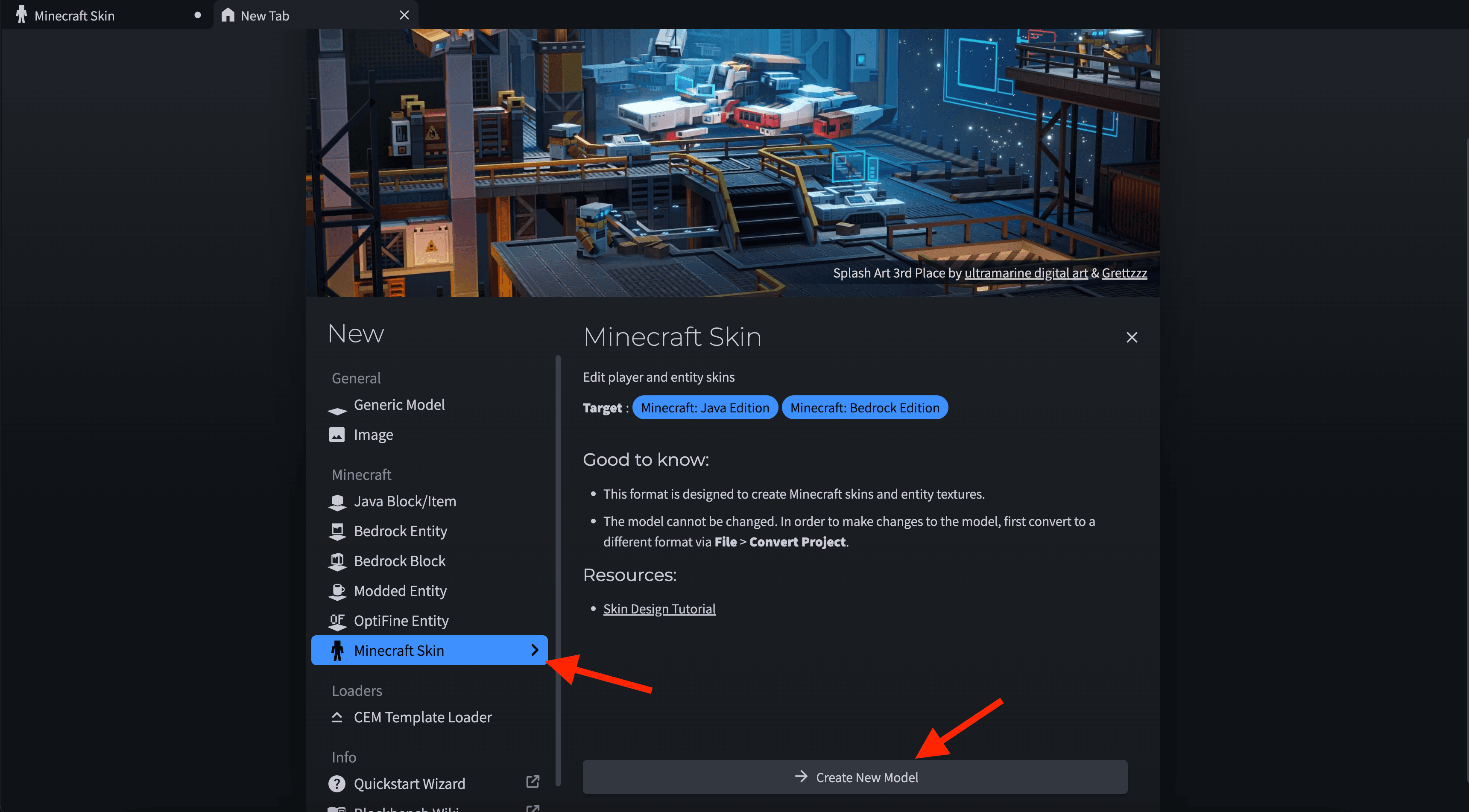
Select a base mob

Select a base mob

3. Draw Your Texture#

Use Blockbench's painting tools to create your custom texture:

  • Paint Tool - Draw directly on the 3D model or UV template
  • Color Picker - Select colors from the palette or use custom colors
  • Fill Tool - Quickly fill areas with solid colors
  • Erase Tool - Remove parts of your texture
  • Layers - Use layers for complex designs (optional)

4. Save Your Texture#

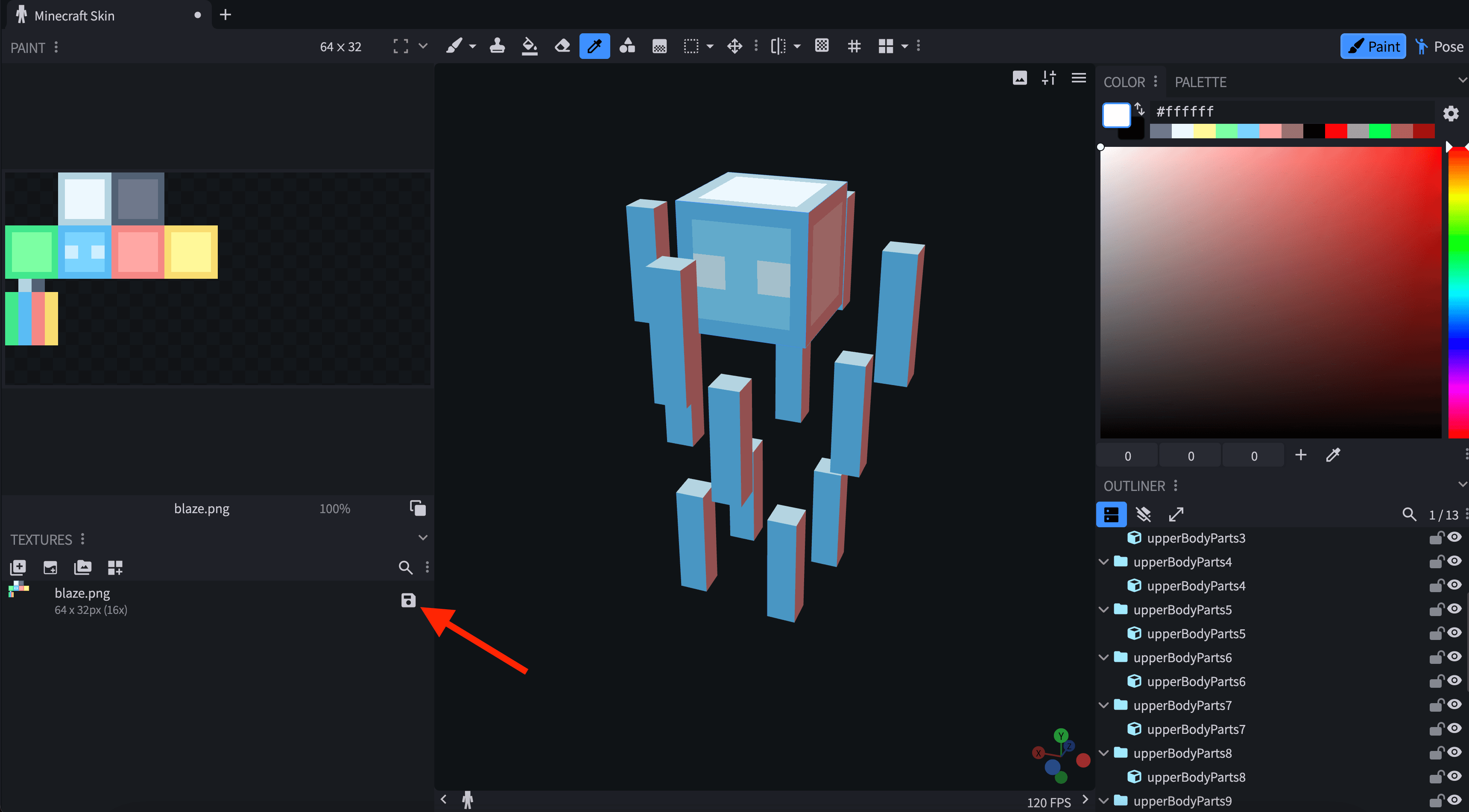
  1. Click the save button on the texture sidebar
  2. Choose PNG format
  3. Save the file to your computer with a descriptive name (e.g., ice_creeper.png)
Save your texture

Save your texture

5. Upload to CreativeMode#

  1. Go to Create Mobs on CreativeMode
  2. Select your Minecraft edition
  3. Choose the same base mob you used in Blockbench
  4. Write your prompt describing the mob's behavior, drops, and other features
  5. Click "Advanced Options"
  6. Under "Custom Texture", click "Upload Texture"
  7. Select your exported PNG file from Blockbench
  8. Generate your mod

CreativeMode will use your custom texture instead of generating one, giving you precise control over your mob's appearance.
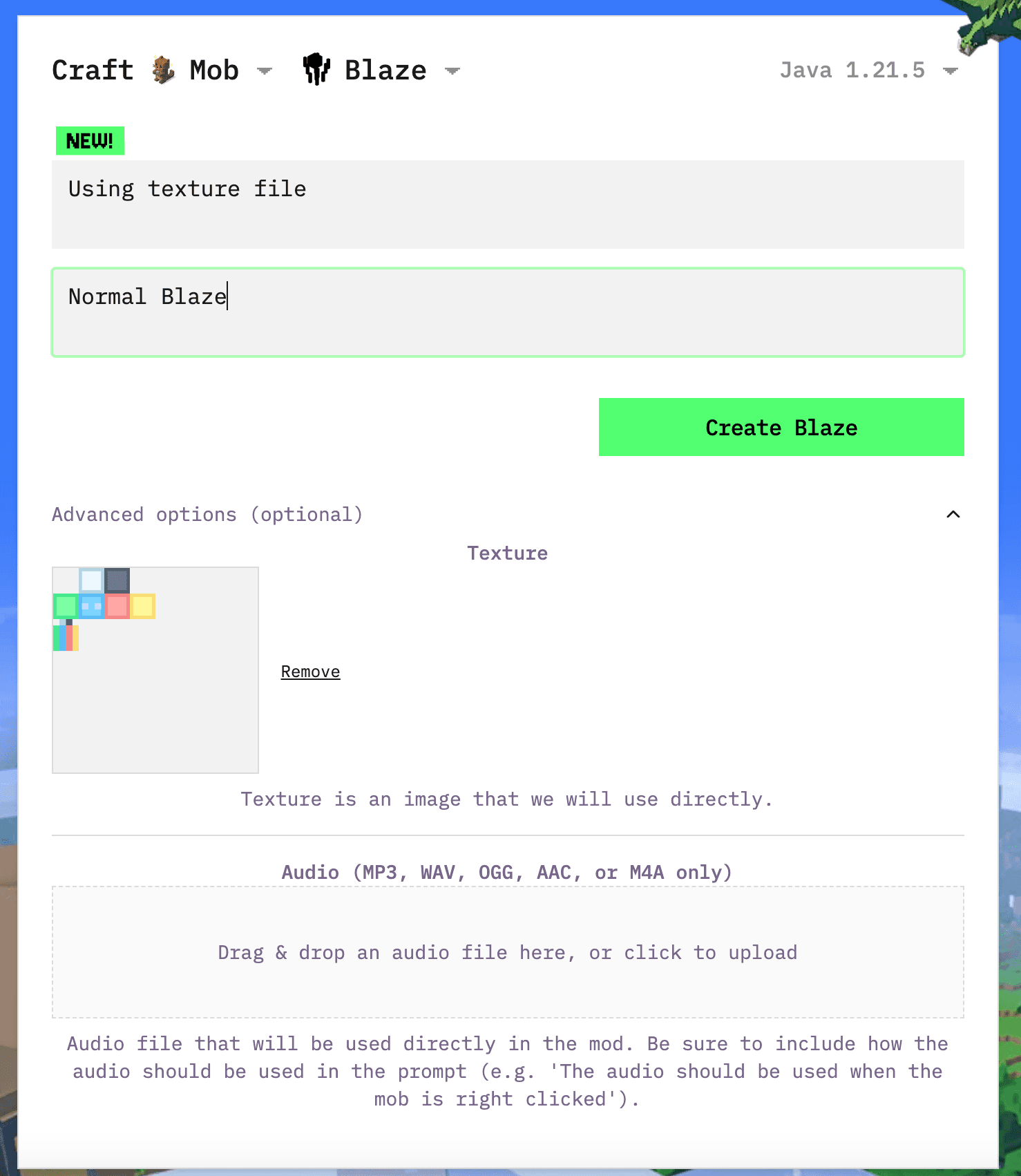
Upload your texture

Upload your texture

6. Done!#

Wait 2-5 minutes for generation to complete, then download and install your mod! Your custom-designed mob will appear in-game with your new texture.

See also#

Mobs, Items, Custom 3D Objects, Discord, help@creativemode.net

Still have questions?

Join our Discord to get help from the developers!

Join Our Discord