
Creative
Mode
Create
Items or Blocks
Items or Blocks

Minecraft has evolved far beyond its origins as a simple block-building game. Today, the Bedrock Edition supports a feature called add ons that lets players transform their minecraft experience with custom mobs, new blocks, unique textures, and entirely new gameplay systems. Add-ons allow players to access more content, including more items and skins, making the game even more fun and customizable. Whether you want to download amazing content from the marketplace or create your own unique add ons, this guide walks you through everything you need to know in 2025.
In this comprehensive guide, you’ll learn how to install add-ons on every platform, where to find the best minecraft add ons safely, and how to start creating your own content using official tools. Let’s dive in.
Adding minecraft add ons to Bedrock Edition is straightforward once you understand the process. On Windows 10/11, iOS, Android, Xbox, PlayStation, and Nintendo Switch, add-ons are enabled through World Settings after importing or purchasing the content.
Here’s a quick step-by-step for Windows 10/11 in 2025:
Download the .mcaddon or .mcpack file from the Minecraft Marketplace or a trusted community site
Double-click the downloaded file to open it with Minecraft
Wait for the “Import started” and “Import successful” messages
Open Minecraft and navigate to Play → Create New World (or edit an existing world)
Select Resource Packs or Behavior Packs under the Add-Ons section
Find your pack under “My Packs” and tap Activate
Create or load your world to play with the add ons activated
Realms users: When you join a Realm with active add-ons, the required packs download automatically. There’s no manual install needed for guests—just join and play with your fellow friends.
Tip: Always back up your minecraft world before enabling large add-on packs. Navigate to your saves folder and copy the world folder to a safe location.
Note for Java Edition players: This article focuses on Bedrock add-ons. Java Edition uses “mods” with separate loaders like Fabric and Forge, which is an entirely different ecosystem. If you’re on Java, you’ll want to explore mod installation guides specific to that version.
Add-ons are official content packages for minecraft bedrock edition that combine Resource Packs and Behavior Packs to modify visuals, sounds, items, mobs, UI elements, and sometimes entire game modes. Think of them as the Bedrock equivalent of mods, but with official support from Mojang Studios.
Concrete examples from 2024–2025 include:
Tower-defense maps that use add-ons to introduce custom waves of mobs with unique abilities
City-life experiences like “Sakura Shores” style maps featuring vehicles, jobs, and modern furniture
Survival overhauls that add new biomes, recipes, and progression systems
Educational worlds that teach coding, history, or science through interactive gameplay
| Resource Packs | Behavior Packs |
|---|---|
| Change textures, sounds, music, and UI | Modify mob behaviors, AI, and stats |
| Alter block and item appearances | Adjust loot tables and spawn rules |
| Customize fonts and language files | Add or modify recipes and item functions |
| No effect on game rules or mechanics | Can fundamentally change gameplay |
| Modern Marketplace add-ons can include custom blocks with unique geometry, custom items with special abilities, custom UI panels for minigames, and scripted behavior using the GameTest Framework. Creators are essentially creating entirely new experiences within the Minecraft engine. |
Add-ons are officially supported on all minecraft bedrock edition platforms: Windows 10/11, Xbox One, Xbox Series X|S, PlayStation 4/5, Nintendo Switch, iOS, Android, and some VR platforms.
Safety should be your priority when looking to download add-ons. Stick to official sources first, then carefully vet any community sites you use.
Some community sites may display download ads as part of the process, so be cautious of intrusive ads.
Legitimate sources will never ask for your Minecraft or Microsoft account password. Some platforms allow creators to include a download ads url, which is honored to support the creator.
Reputable sources often provide add-ons fully tested for safety and functionality.
The Minecraft Marketplace is the primary official source for add-ons, available directly within the game on all Bedrock platforms. Purchases sync with your Microsoft account, so content bought on Xbox works on your phone too. The Marketplace uses Minecoins (or local currency in some regions) for transactions.
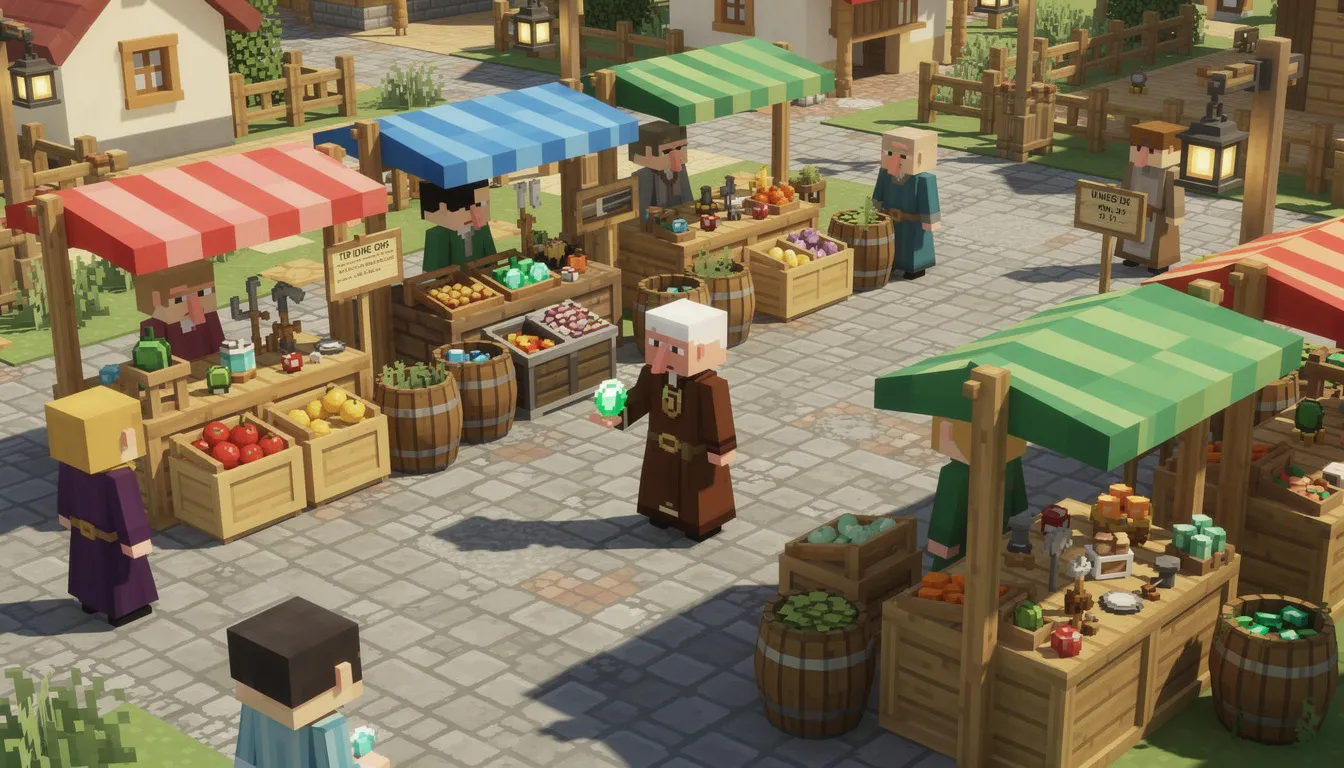
Reputable community sites distribute free .mcpack and .mcaddon files. When using these sites:
Avoid sites that force unknown launchers or suspicious installers
Skip pages with excessive redirects or popup ads
Never enter your Microsoft account password on third-party sites
Check that the download link leads directly to a .mcaddon or .mcpack file
Before you install any add-on, run through this checklist:
[ ] Read user reviews and comments for red flags
[ ] Check the last update date (compatible with 1.20+ for current play)
[ ] Verify the creator’s name and reputation in the community
[ ] Scan downloads with antivirus software on PC
[ ] Look for a proper add on page with clear descriptions and screenshots
Free add-ons from community sites may require attribution or clicking through external links, but legitimate sources never ask for passwords or require installing separate apps to access content.
This section breaks down installation by platform. While the specific steps vary, all Bedrock platforms follow the same core activation process:
Import or download the add-on
Go to World Settings → Resource Packs / Behavior Packs
Find the pack under My Packs
Tap Activate
Joining a Realm or featured server with active add-ons automatically downloads and applies required packs on all supported devices. This makes it easy to explore new content with friends without manual setup.
Platform quirks to know:
Consoles have limited file access, so most players rely on Marketplace and Realms
Mobile devices may need storage permissions granted to browsers
Large add-ons can significantly increase load times on low-end devices
Test new add-ons in a fresh world before adding them to your long-term survival saves.
Windows offers the most flexible environment for custom add-ons in 2025. You can install content from the Marketplace, import .mcaddon files, and even modify packs directly.
To install via .mcaddon or .mcpack:
Save the file to your Downloads folder
Double-click the file—it should automatically open with Minecraft
Watch for the “Import started” followed by “Import successful” message
The pack now appears in your game under My Packs
Where packs are stored:
Navigate to this path to access your installed content:
%LOCALAPPDATA%\Packages\Microsoft.MinecraftUWP\LocalState\games\com.mojang
Enable “Hidden items” and “File name extensions” in File Explorer to see everything.
| Folder | Purpose |
|---|---|
| resource_packs | Installed resource packs |
| behavior_packs | Installed behavior packs |
| development_resource_packs | For testing resource packs in development |
| development_behavior_packs | For testing behavior packs in development |
| Pro tip: Keep a dedicated “Test World” with cheats enabled. This lets you quickly turn add-ons on and off while debugging without risking your main saves. |
Mobile players typically install add-ons through the Marketplace or by opening .mcaddon/.mcpack files from a browser or file manager app.
Installation steps:
Download the .mcaddon or .mcpack file from a trusted source
Tap the file in your browser’s downloads or file manager
Select “Open with Minecraft” when prompted
Wait for the import confirmation
Open Minecraft and activate the pack in World Settings
On iOS 12.0+ and modern Android versions, you may need to grant storage permissions to your browser or file manager app before downloads work properly.
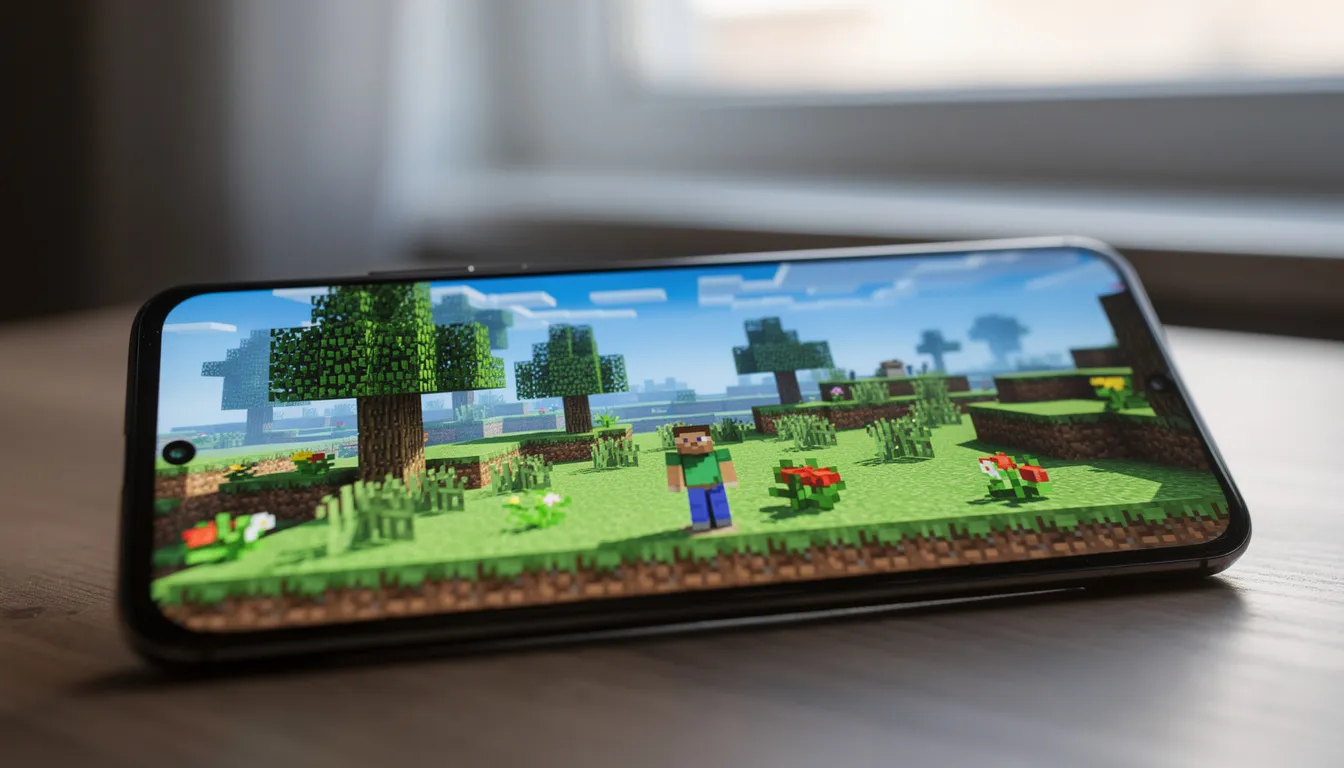
About third-party add-on apps:
Some apps bundle many addons and display ads. Before installing these apps:
Check app ratings in the store
Review the data safety section
Read privacy policies
Look for recent user complaints about forced ads or suspicious behavior
Once imported, add-ons appear under “My Packs” and sync to Realms used by the same Microsoft account. Periodically delete unused packs to free up storage on devices with limited space.
On consoles, add-ons are accessed primarily through the in-game Marketplace and Realms. There’s no official way to import arbitrary .mcaddon files from USB drives or web browsers.
Key points for console players:
Add-ons purchased on one Bedrock device via Marketplace are tied to your Microsoft account
Content can be used on other supported devices logged into the same account
Download from Marketplace, then create a new world from the template or apply packs in world settings
Joining a Realm with active packs triggers an automatic download (you may need to confirm a prompt)
Performance note: Older consoles or devices with full storage may struggle with extremely large add-on worlds. Free up space and close other apps before loading resource-intensive content.
Ready to go from player to creator? Mojang now provides official tools and wizards that help beginners create add-ons without writing everything from scratch. The baby steps you take today could lead to publishing on the Marketplace tomorrow.
The Minecraft Creator Learning Portal serves as your hub for tutorials on resource packs, behavior packs, and entity creation. This resource is regularly updated with new content through 2024–2025.
Essential creation tools:
Blockbench – Free 3D modeling tool for mobs, blocks, and items
Entity Wizard – Quickly generate new mobs from base templates
Block Wizard – Create custom blocks with unique shapes and textures
Item Wizard – Make custom items in under 30 seconds
CreativeMode.net - Make mods and addons without coding
Suggested beginner learning path:
Start with a simple texture pack (swap a few block textures)
Try a basic behavior tweak (like changing creeper blast radius)
Create a basic custom mob using the Entity Wizard
Build a small themed add-on world combining resource and behavior packs
A resource pack controls textures, sounds, fonts, and parts of the GUI. It can completely transform the look and feel of Minecraft without affecting gameplay rules.
Example: A “Sakura City” theme that replaces leaves with cherry blossoms, planks with polished wood textures, and skies with pink-tinged sunsets. Add custom UI elements for a modern city aesthetic and you’ve created an entirely new kind of visual experience.
Basic resource pack structure:
my_resource_pack/
├── manifest.json
├── pack_icon.png
├── textures/
│   ├── blocks/
│   └── items/
└── ui/
Recommended tools for texture editing:
Paint.NET (free, Windows)
GIMP (free, cross-platform)
Photoshop (paid, professional)
Work at 16×16 pixels for classic look, or 32×32 and higher for more detail. Test resource changes on a flat test world, then iterate by reloading the pack from Settings → Global Resources.
Behavior packs are bundles of JSON files that alter how entities act, what items do, and how game rules apply. This is where you modify the actual game mechanics.
Specific examples of behavior pack modifications:
Make zombies faster and more aggressive
Give skeletons custom bows with special effects
Change villager trades to offer rare items
Add a new kind of mob like a “Goblin Chef” that cooks special food for players
Typical behavior pack folders:
| Folder | Contents |
|---|---|
| entities | Mob definitions and AI behaviors |
| items | Item properties and functions |
| loot_tables | Drop tables for mobs and blocks |
| functions | Command sequences |
| scripts | GameTest Framework code (advanced) |
| Development tip: Use Visual Studio Code with the official Minecraft Bedrock extension. You’ll get JSON validation, auto-completion, and quick access to documentation—essential tools for efficient creation. |
Always increment version numbers in manifest.json when making significant changes. This ensures Minecraft recognizes the updated pack and doesn’t use cached older versions.
Blockbench is a free 3D modeling app widely used for Minecraft content creation. It offers direct export options for Bedrock Edition, making it the go-to tool for custom models.

Using the Entity Wizard:
Open Blockbench and select Entity Wizard
Pick a base model (cow, villager, zombie, etc.)
Edit the geometry to create your new mob design
Assign animations from the library or create custom ones
Export ready-to-use behavior and resource pack templates
Using the Block Wizard:
The Block Wizard creates custom blocks with unique shapes, collision boxes, and textures. Bedrock now supports custom block geometry, so you can craft furniture add on pieces, decorative elements, or functional blocks for your maps.
Beginner project ideas:
Build a simple tower-defense enemy mob
Create a decorative furniture piece for a city map
Design a custom tool with unique textures
Make themed blocks for a seasonal adventure map
Keep polygon counts modest and test new models on low-end devices. A mob that looks great in Blockbench might tank performance if it’s too complex.
As of 2024–2025, Mojang has released Editor v1.0 and expanded the GameTest Framework to accelerate world building and enable automated testing. These tools represent a new feature set aimed at serious creators.
Editor v1.0 is a built-in tool (currently for Bedrock on PC) that lets creators:
Sculpt terrain quickly with brush tools
Duplicate and transform structures
Edit environments faster than block-by-block placement
Create large-scale builds in a fraction of the time
GameTest Framework enables creators to write small scripts that test mechanics automatically. Verify that your redstone contraptions work, your custom mobs spawn correctly, and your parkour checkpoints trigger properly—all without manual testing.
Both tools are aimed at map makers and Marketplace partners, but hobbyists can access them too. Experiment on separate “Dev Worlds” so you can reset or roll back if something breaks.
GameTest structures (think of them as test chambers) and scripts can repeatedly run scenarios to verify your add-on works as intended.
Concrete use cases:
Verify a parkour world’s checkpoint system triggers correctly
Ensure a custom mob’s loot table drops the right items
Confirm a wave-based minigame starts and progresses properly
Test that xp games award points correctly
Best practices for GameTest:
Create a dedicated test world with all your scenarios
Name tests clearly to match features (e.g., “goblinChef_cooksFood”)
Use on-screen messages and logs to diagnose failures quickly
Re-run tests after each Minecraft update to catch breaking changes
GameTest scripts use JavaScript/TypeScript and run inside Minecraft’s scripting environment. The official docs provide templates you can copy and modify for your specific needs. When you easily find issues through automated testing, you save hours of manual debugging.
Many mobile “add-ons for Minecraft” apps collect data and display ads. Before installing any third-party app, understand what permissions you’re granting and how your data is used.
Typical data these apps may collect:
Personal info (name, email if accounts are created)
Device identifiers
Approximate location
App performance metrics
This data is often shared with advertising partners to send fancy notifications and serve targeted ads.
Most add-on apps do not offer amazing personalized feeds or advanced social features, but some do let you bookmark people for easier access to their profiles or content.
Both Google Play and Apple’s App Store now show “Data Safety” or “App Privacy” sections. Check these before installing to see:
What data is collected
Whether it’s linked to your identity
If it’s used for tracking across apps and websites
Red flags to watch for:
No encryption in transit mentioned
No data deletion options
Recent reviews complaining about forced ads
Points systems that require watching ads to download content
Requests for unnecessary permissions (location, contacts)
Use the official Minecraft Marketplace and well-known community sites first. Be very cautious about granting “always-on” location or contact-list permissions to third-party add-on apps.
Some add-on apps introduce aggressive monetization: point systems, frequent interstitial ads, expensive in-app purchases, or game purchases users interact with accidentally. This frustrates players—especially children.
Practical steps to protect yourself:
Disable personalized ads in app settings when available
Review subscription details and renewal dates before confirming
Use platform-level parental controls to limit in-app spending
Set spending limits on Microsoft accounts for children
Managing app permissions:
You can revoke permissions in iOS and Android system settings if an add-on app requests access it doesn’t need. There’s no reason a texture pack app needs your contact list or precise location.
Even legitimate apps may break after major Minecraft updates. If an app stops working:
Check for app updates in your store
Uninstall and reinstall if issues persist
Re-download add-ons from trusted sources
Look for alternative apps with better reviews
For families: Set clear rules about which add-on apps are allowed. Favor apps that clearly state how they handle children’s data and comply with regulations like COPPA. The instruction provided by responsible developers includes transparency about data collection.
Add-ons are the official way to modify minecraft bedrock edition, combining resource packs and behavior packs
Install on Windows by double-clicking .mcaddon files; on consoles, use Marketplace and Realms
The Minecraft Marketplace is the safest source; vet community downloads carefully
Start creating with Blockbench, Entity Wizard, and Block Wizard using official tutorials
Use GameTest Framework to automate testing as your add-ons grow more complex
Always check data safety sections before installing third-party add-on apps
Whether you’re installing your first texture pack to refresh those familiar blocks or using Blockbench to create custom mobs for your realm, add-ons unlock a new kind of creativity in Minecraft. The tools available in 2025—from the Item Wizard to Editor v1.0—make it easier than ever to join the creator community.
Start small. Install one add-on today and explore how it changes your minecraft world. Create a test world, experiment with the development folders, and take those first steps toward making your own content. The same platform that lets you play and discover can become your canvas to create and share with the community.
Ready to transform your game? Open Minecraft, navigate to the Marketplace, and search for something new. Or fire up Blockbench and start modeling your first custom mob. Either way, you’re taking the next step in your Minecraft journey.
CreativeMode allows players to create Minecraft mods without coding. You can create custom items, blocks, mobs, structures, and more. Join the 200,000+ players who are already using CreativeMode.

All CreativeMode Pro players can now create their own multiplayer servers for Java or Bedrock - included at no extra cost!
Feb 19, 2026

A summary of real CreativeMode reviews from players: what they like, common themes across feedback, and how the platform handles safety and trust.
Feb 19, 2026

Explore top MC addons that enhance your Minecraft gameplay. Boost your experience and find the perfect mods to elevate your adventures. Read more!
Feb 9, 2026